Adding Luzmo IQ to your agentic workflow
In this guide, we'll show you how to give any LLM agent the ability to query your analytics data using Luzmo's IQ APIs . The idea is simple: expose Luzmo IQ as a callable tool, and let the LLM decide when it needs to analyze data to answer a user's question.
This pattern works with any agent framework: Raw tool/function calls, Claude , OpenAI , LangChain , LangGraph , Deep agents , n8n , or any other setup that supports function/tool calling.
Notes: For a complete list of the ways to use Luzmo IQ (including the toggle on the dashboard level and instructions on embedding the chat component), please see our Academy article .
You'll need a valid API key to create Embed Authorization tokens (requested server-side based on your application's logged-in user) for authenticating AIPrompt requests.
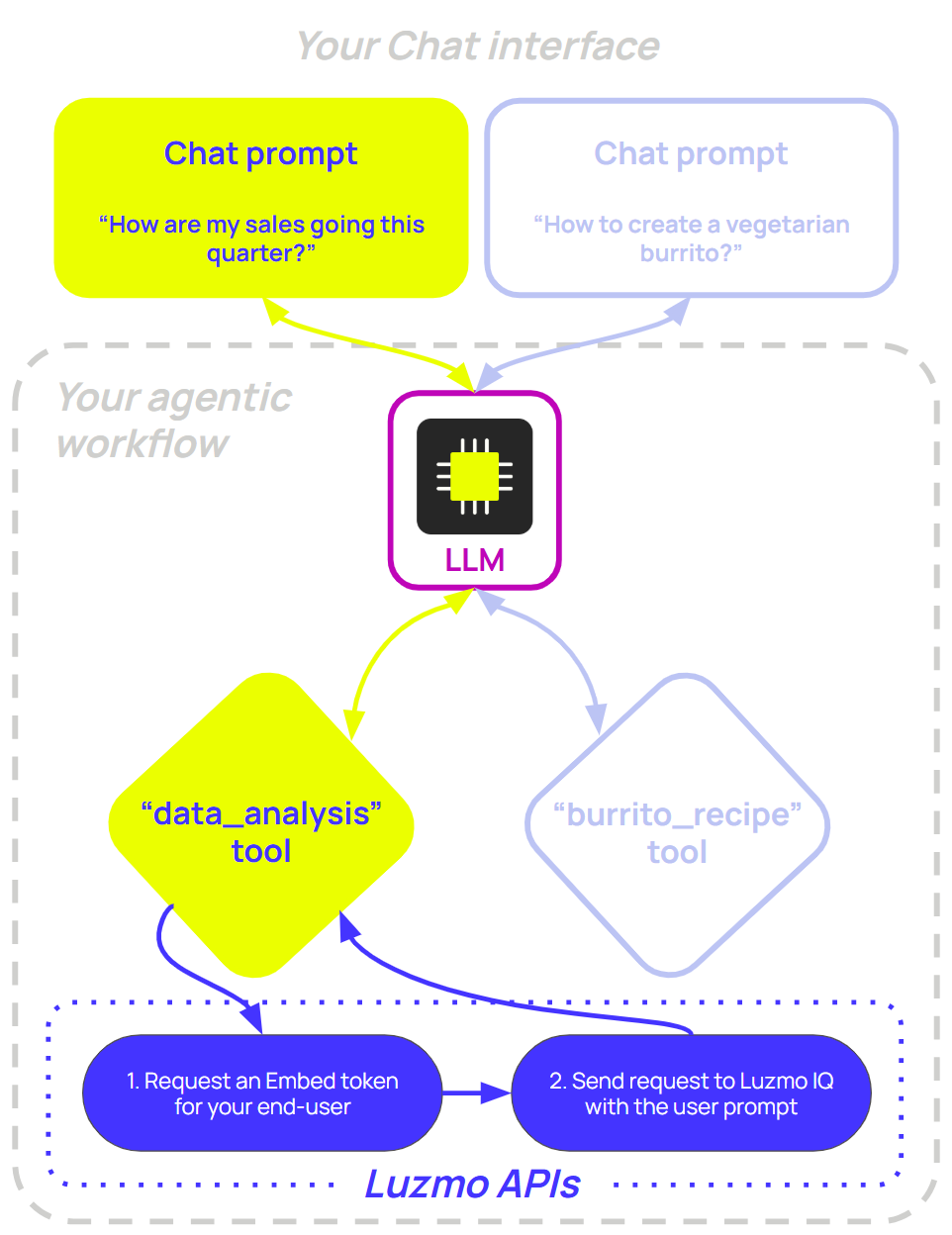
Your agent loop stays the same, regardless of the framework you use:
A user asks a question
The LLM decides whether it needs data and calls your
data_analysistoolYour
data_analysistool implementation sends the prompt to Luzmo IQ and returns the result to the LLMThe LLM formulates its final answer
If you're looking for ready-to-use example code, start with one of these:
| Framework | Example implementations |
|---|---|
| OpenAI | TypeScript & Python |
| LangChain | TypeScript & Python |
| LangGraph | TypeScript & Python |
| Deep Agents | TypeScript & Python |
| n8n | Workflow JSON |
The AIPrompt endpoint
To use Luzmo IQ through the Core API, use the AIPrompt service with agent: "analyst" and task: "generate" . The only required input is one text item with the natural-language question you want Luzmo IQ to answer. You can also pass dataset references when you already know which datasets the analyst should use, or a dashboard context entry when the user is asking about a dashboard they are viewing (see Grounding answers in a dashboard ). The request uses an Embed key-token pair for user authentication and authorization (e.g. access to IQ, which datasets are accessible, which multitenancy should be applied on the queries, etc.).
curl -X POST https://api.luzmo.com/0.1.0/aiprompt \
  -H "Content-Type: application/json" \
  -d '{
    "action": "create",
    "version": "0.1.0",
    "key": "<your-embed-key>",
    "token": "<your-embed-token>",
    "properties": {
      "agent": "analyst",
      "task": "generate",
      "stream": false,
      "response_mode": "mixed",
      "text_format": "markdown",
      "locale_id": "en",
      "input": [
        { "type": "text", "text": "How are quarterly sales trending?" },
        { "type": "dataset", "id": "<dataset_id>" }
      ]
    }
  }'
Endpoints:
EU multitenant:
https://api.luzmo.com/0.1.0/aipromptUS multitenant:
https://api.us.luzmo.com/0.1.0/aipromptVPC-specific:
https://vpc-specific-api-url/0.1.0/aiprompt
With stream: false , the response is a JSON object with conversation_id , user_message , and assistant_message . The assistant text is available on assistant_message.message ; generated charts are returned as assistant_message.aiMessageAssets .
With stream: true , AIPrompt responds with Server-Sent Events (SSE). Parse each data: <event JSON> frame until data: [DONE] . Text is delivered through text_delta events, chart definitions through asset_delta events, and the final persisted response through the finish event.
Response modes
AIPrompt supports three response modes for the analyst agent, which you control with the response_mode property. In an agentic context, text is useful when the LLM only needs prose; mixed is the default when you also want charts for your own UI.
text- AIPrompt returns a plain text answer. The LLM can read, summarise, or reason about it. Best for agentic use cases where the LLM is composing the final response.mixed(default) - AIPrompt can return both a textual answer and Flex chart configurations, depending on the question. Useful when you want to surface chart data to your own UI alongside the text.You can render the full response using our Answer component , or in your own interface together with the Flex SDK (to render any generated chart configurations).
asset- AIPrompt returns generated assets such as Flex chart configurations. Useful if you want to programmatically embed a generated chart without accompanying prose.You can render these charts using our Flex SDK .
Grounding answers in a dashboard
When the user asks a question while looking at a dashboard, you can pass that dashboard as context so the analyst grounds its answer in what the user is actually seeing. Add a single dashboard input alongside the text input, and pass the dashboard state you already hold for the embedded dashboard. The analyst uses:
views→items: the charts on the dashboard, so it can reference and describe the specific items the user is looking at (it reads the view matchingcurrentScreenMode, falling back todesktop).runtimeFilters: the filters currently applied to the dashboard, so the answer is scoped to the same slice of data.meta: the dashboard's title and description.
The whole payload is accepted loosely (every field is optional and unknown fields are ignored), so include the charts, filters, and metadata you already have rather than an empty payload.
Also pass the datasets the dashboard uses as dataset inputs. When you provide dataset inputs the analyst is scoped to exactly those datasets; without them it falls back to a semantic search over the accessible datasets, which is less predictable. So a grounded dashboard request typically carries three input types: one text (the question), one dashboard (the context), and one or more dataset entries (the datasets on the dashboard).
{
  "agent": "analyst",
  "task": "generate",
  "response_mode": "text",
  "input": [
    { "type": "text", "text": "Why did revenue drop compared to last quarter?" },
    {
      "type": "dashboard",
      "value": {
        "currentScreenMode": "desktop",
        "meta": {
          "title": "Sales overview",
          "description": "Quarterly revenue and pipeline KPIs for the EMEA region."
        },
        "views": [
          {
            "screenModus": "desktop",
            "items": [
              {
                "id": "<item_id>",
                "type": "line-chart",
                "options": { "title": { "en": "Revenue by quarter" } },
                "slots": [],
                "filters": []
              }
            ]
          }
        ],
        "runtimeFilters": [
          {
            "condition": "and",
            "origin": "global",
            "datasetId": "<dataset_id>",
            "filters": [
              {
                "expression": "? in ?",
                "parameters": [
                  { "datasetId": "<dataset_id>", "columnId": "<column_id>" },
                  ["EMEA"]
                ]
              }
            ]
          }
        ]
      }
    },
    { "type": "dataset", "id": "<dataset_id>" }
  ]
} The runtimeFilters follow the same shape as the filters returned by the embed getFilters method, so you can pass them straight through from an embedded dashboard. The dashboard input is read context only; it is not persisted as an asset on the message. See the AIPrompt API reference for the full dashboard input schema.
Core integration flow
Use the steps below to wire Luzmo IQ into an (existing) agent workflow, from tool setup to returning the final result to your LLM. The Luzmo IQ tool call flow will look as follows:
Receive the tool arguments
Request an Embed key-token pair for that user
Call AIPrompt with that Embed key-token pair
Return the result to the LLM
Defining the tool
Here's the tool schema to register with your LLM. It works with OpenAI, Anthropic, and any API that follows the function-calling spec. Add this object to your tools array, alongside any other tools your agent might need:
{
  "type": "function",
  "function": {
    "name": "data_analysis",
    "description": "Query analytics data. Use for questions about metrics, KPIs, dashboards, trends, or business performance.",
    "parameters": {
      "type": "object",
      "properties": {
        "prompt": { "type": "string", "description": "The data question to answer" },
        "response_mode": {
          "type": "string",
          "enum": ["mixed", "text", "asset"],
          "description": "Response type: mixed (text and/or chart), text, or asset. Defaults to mixed if omitted."
        },
        "locale_id": {
          "type": "string",
          "description": "Locale/language for the answer (e.g. en, fr). Defaults to en if omitted."
        }
      },
      "required": ["prompt"]
    }
  }
}The description is important - the LLM uses it to decide when to call the tool. Be specific about the kinds of questions it should handle to ensure optimal tool usage!
Requesting an Embed Authorization token
When the LLM decides to call your data_analysis tool, your backend should first request an Embed Authorization token on behalf of the currently logged-in user in your application.
That token is what defines what IQ can access and how access is scoped:
It should grant access to the datasets needed to answer the request using the
accessproperty (through one or more collections, and/or directly to one or more datasets).Make sure to also grant access to any dashboard(s) your end-user should have access to (similar to datasets, either through a collection or directly to the dashboard) - this will ensure that any scheduled resources (e.g. exports, alerts) on these dashboards still continue to work.
It should include your multitenancy restrictions , so queries are automatically scoped to the necessary tenant/account/user configuration (e.g. Embed filters and/or Connection overrides ).
Optionally use
iq.contextto add a master prompt that steers Luzmo IQ (e.g. response format, terminology).
For all properties, see the Create Authorization API documentation .
Luzmo API key and token required. The examples below use your Luzmo API key-token pair to create Embed tokens. Create one in Luzmo profile settings and pass it via environment variables such as LUZMO_API_KEY and LUZMO_API_TOKEN .
import Luzmo from '@luzmo/nodejs-sdk';

const luzmoClient = new Luzmo({
  api_key: process.env.LUZMO_API_KEY!,
  api_token: process.env.LUZMO_API_TOKEN!,
  host: 'https://api.luzmo.com'
});

async function requestEmbedToken(
  userId: string,
  name: string,
  email: string,
  suborganization: string
): Promise<{ embedKey: string; embedToken: string }> {
  const response = await luzmoClient.create('authorization', {
    type: 'embed',
    username: userId,
    name,
    email,
    suborganization,
    access: {
      collections: [{ id: '<collection_id>', inheritRights: 'use' }],
      datasets: [{ id: '<dataset_id>', rights: 'use' }],
      dashboards: [{ id: '<dashboard_id>', rights: 'use' }]
    },
    iq: {
      context: `This is a master prompt you can use to steer Luzmo IQ in specific directions.

For example:
- Use a different response format (e.g. bullet points, tables)
- Add customer-specific details
- Enforce terminology
- Include confidence levels

These instructions apply to all Luzmo IQ AIPrompt requests made with this token.`
    }
  });
  return { embedKey: response.id, embedToken: response.token };
}
Calling AIPrompt
The function below sends a prompt to AIPrompt and reads back the non-streaming JSON response. For advanced progress updates, set stream: true and parse the SSE events described above.
async function handleAIPrompt(
  prompt: string,
  embedKey: string,
  embedToken: string,
  response_mode: "mixed" | "text" | "asset" = "mixed",
  locale_id: string = "en"
): Promise<string> {
  const response = await fetch("https://api.luzmo.com/0.1.0/aiprompt", {
    method: "POST",
    headers: { "Content-Type": "application/json" },
    body: JSON.stringify({
      action: "create",
      version: "0.1.0",
      key: embedKey,
      token: embedToken,
      properties: {
        agent: "analyst",
        task: "generate",
        stream: false,
        response_mode,
        text_format: "markdown",
        locale_id,
        input: [{ type: "text", text: prompt }]
      }
    })
  });

  if (!response.ok) throw new Error(`AIPrompt error: ${response.status}`);

  const result = await response.json();
  const message = result.assistant_message?.message;
  const assets = result.assistant_message?.aiMessageAssets ?? [];

  if (assets.length > 0) {
    return JSON.stringify({ message, assets });
  }

  return message || "(No data returned)";
}
The agent loop
OpenAI API key required. The examples below use the OpenAI API. Ensure you have an API key (e.g. from platform.openai.com ) and pass it when creating the client—typically via an environment variable such as OPENAI_API_KEY .
With the tool defined and implemented, plug it into your agent loop. Request the Embed token only when handling a data_analysis tool call:
A complete, runnable example is available in the openai directory of our example repository (TypeScript and Python).
import OpenAI from "openai";

const openai = new OpenAI({ apiKey: process.env.OPENAI_API_KEY });
const messages = [
  { role: "system", content: "You help users with data questions. Use data_analysis for analytics." },
  { role: "user", content: userQuestion }
];

const tools = [
  ..., // Your other tool definitions
  {
    type: "function",
    function: { name: "data_analysis", ... }, // See `data_analysis` schema above
  }
];

// Loop until the model responds without tool calls, or hit max rounds (safety cap).
for (let i = 0; i < 10; i++) {
  const response = await openai.chat.completions.create({
    model: "gpt-4o-mini",
    messages,
    tools,
    tool_choice: "auto"
  });

  const choice = response.choices[0];

  // No tool calls means the model has the final answer; return it.
  if (!choice.message.tool_calls?.length) {
    return choice.message.content;
  }

  messages.push(choice.message);
  for (const tc of choice.message.tool_calls) {
    let result: string;
    if (tc.function.name === "data_analysis") {
      // First request a Luzmo Embed Authorization token for your end-user
      const { embedKey, embedToken } = await requestEmbedToken(
        currentUserId,
        currentUserName,
        currentUserEmail,
        currentUserSuborg
      );

      // Then send the prompt to the Luzmo IQ API to perform a data analysis
      const args = JSON.parse(tc.function.arguments);
      result = await handleAIPrompt(
        args.prompt,
        embedKey,
        embedToken,
        args.response_mode ?? "mixed",
        args.locale_id ?? "en"
      );
    } else {
      // Handle other tools as needed
      result = `(Tool ${tc.function.name} not implemented in this example)`;
    }
    messages.push({ role: "tool", tool_call_id: tc.id, content: result });
  }
}
Framework implementations
There are two ways to add Luzmo IQ to an agent framework:
Call AIPrompt from your own tool when you need full control over Embed token creation, request shaping, streaming, or response handling.
Attach the Luzmo MCP server when your framework can consume MCP tools directly. This exposes Luzmo's analyst agent as a standard tool, so the framework handles tool discovery and calls.
Configure the Luzmo MCP server with header-based authentication. See MCP server — Authentication for all supported auth methods.
{
  "mcpServers": {
    "luzmo": {
      "type": "http",
      "url": "https://api.luzmo.com/0.1.0/mcp",
      "headers": {
        "authKey": "<your-api-key>",
        "authToken": "<your-api-token>"
      }
    }
  }
}
The default tools depend on the credentials: with an API key and token (as above), the MCP exposes all tools except answer_question_text ; with an Embed key and token, it exposes search_datasets , answer_question , and create_chart . Use the tools query parameter to narrow the set (see Tools ). Use answer_question for natural-language analyst questions; it calls AIPrompt with agent: "analyst" and can return text plus chart assets when helpful.
OpenAI Agents SDK
The OpenAI Agents SDK can attach a hosted MCP server directly. Use hostedMcpTool when you want OpenAI's Responses API to call the remote MCP server on the model's behalf:
For applications that manage the MCP connection themselves, use MCPServerStreamableHttp with the Luzmo MCP URL and pass authKey / authToken through requestInit.headers . Pass the server through mcpServers on the agent.
import { Agent, hostedMcpTool, run } from '@openai/agents';

const agent = new Agent({
  name: 'Analytics assistant',
  instructions: 'Answer analytics questions. Use Luzmo when the user asks about metrics, KPIs, trends, dashboards, or charts.',
  tools: [
    hostedMcpTool({
      serverLabel: 'luzmo',
      serverUrl: 'https://api.luzmo.com/0.1.0/mcp',
      headers: {
        authKey: '<your-api-key>',
        authToken: '<your-api-token>'
      },
      allowedTools: ['answer_question', 'search_datasets']
    })
  ]
});

const result = await run(agent, 'How are quarterly sales trending?');
console.log(result.finalOutput);
Claude Agent SDK
The Claude Agent SDK can attach MCP servers through the mcpServers option. Add the Luzmo MCP server and allow the tools Claude may call:
import { query } from '@anthropic-ai/claude-agent-sdk';

for await (const message of query({
  prompt: 'How are quarterly sales trending?',
  options: {
    mcpServers: {
      luzmo: {
        type: 'http',
        url: 'https://api.luzmo.com/0.1.0/mcp',
        headers: {
          authKey: '<your-api-key>',
          authToken: '<your-api-token>'
        }
      }
    },
    allowedTools: ['mcp__luzmo__answer_question', 'mcp__luzmo__search_datasets']
  }
})) {
  if (message.type === 'result' && message.subtype === 'success') {
    console.log(message.result);
  }
}
LangChain
LangChain lets you register tools directly on an agent - no manual message loop required. If you want to use Luzmo MCP, load the MCP tools with @langchain/mcp-adapters (TypeScript) or langchain-mcp-adapters (Python) and pass them to createAgent . If you need a custom wrapper, use the data_analysis tool pattern from the core integration flow above.
A complete, runnable example is available in the langchain directory of our example repository (TypeScript and Python).
import { MultiServerMCPClient } from "@langchain/mcp-adapters";
import { createAgent } from "langchain";
import { ChatOpenAI } from "@langchain/openai";

const client = new MultiServerMCPClient({
  luzmo: {
    transport: "http",
    url: "https://api.luzmo.com/0.1.0/mcp?tools=search_datasets,answer_question",
    headers: {
      authKey: "<your-api-key>",
      authToken: "<your-api-token>"
    }
  }
});

const tools = await client.getTools();
const llm = new ChatOpenAI({ model: "gpt-4o-mini" });
const agent = createAgent({
  model: llm,
  tools,
  systemPrompt: "You help users with data questions. Use Luzmo for analytics."
});

const result = await agent.invoke({ messages: [{ role: "user", content: "What were last month's sales?" }] });
console.log(result.messages.at(-1)?.content);

await client.close();
If you prefer a graph-based orchestration style with explicit state and conditional edges, use LangGraph below.
LangGraph
If you're using LangGraph, use the same MCP adapter path as LangChain and pass the loaded Luzmo tools to create_react_agent (Python) or createReactAgent (JavaScript). LangGraph is only available for Python and JavaScript; for other languages, use the agent loop pattern above.
A complete, runnable example is available in the langgraph directory of our example repository (TypeScript and Python).
import { MultiServerMCPClient } from "@langchain/mcp-adapters";
import { createReactAgent } from "@langchain/langgraph/prebuilt";
import { ChatOpenAI } from "@langchain/openai";

const client = new MultiServerMCPClient({
  luzmo: {
    transport: "http",
    url: "https://api.luzmo.com/0.1.0/mcp?tools=search_datasets,answer_question",
    headers: {
      authKey: "<your-api-key>",
      authToken: "<your-api-token>"
    }
  }
});

const tools = await client.getTools();
const llm = new ChatOpenAI({ model: "gpt-4o-mini" });
const agent = createReactAgent({ llm, tools });

const result = await agent.invoke({
  messages: [{ role: "user", content: "What were last month's sales?" }]
});

await client.close();
Deep agents
Deep agents (Python) and Deep agents (TypeScript) provide an agent harness with built-in planning, file systems, and subagent support. Deep Agents Code can discover MCP servers from .mcp.json , so you can add Luzmo without writing a wrapper:
{
  "mcpServers": {
    "luzmo": {
      "type": "http",
      "url": "https://api.luzmo.com/0.1.0/mcp",
      "headers": {
        "authKey": "<your-api-key>",
        "authToken": "<your-api-token>"
      },
      "allowedTools": ["answer_question", "search_datasets"]
    }
  }
}
For programmatic Deep Agents applications, you can also use the LangChain MCP adapter approach shown above, or register a custom data_analysis tool and pass it to create_deep_agent (Python) or createDeepAgent (TypeScript). Deep agents is only available for Python and JavaScript; for other languages, use the agent loop pattern above.
A complete, runnable example is available in the deepagents directory of our example repository (TypeScript and Python).
import * as z from "zod";
import { createDeepAgent } from "deepagents";
import { tool } from "langchain";

const dataAnalysis = tool(
  async ({ prompt, response_mode, locale_id }) => {
    const { embedKey, embedToken } = await requestEmbedToken(
      currentUserId,
      currentUserName,
      currentUserEmail,
      currentUserSuborg
    );
    return handleAIPrompt(
      prompt,
      embedKey,
      embedToken,
      response_mode ?? "mixed",
      locale_id ?? "en"
    );
  },
  {
    name: "data_analysis",
    description: "Query analytics data for metrics, KPIs, and business performance.",
    schema: z.object({
      prompt: z.string().describe("The data question to answer."),
      response_mode: z
        .enum(["mixed", "text", "asset"])
        .optional()
        .default("mixed")
        .describe("Response type: mixed (text and/or chart), text, or asset."),
      locale_id: z
        .string()
        .optional()
        .default("en")
        .describe("Locale/language for the answer (e.g. en, fr).")
    })
  }
);

const agent = createDeepAgent({
  tools: [dataAnalysis],
  system: "You help users with data questions. Use data_analysis for analytics.",
});

const result = await agent.invoke({
  messages: [{ role: "user", content: "What were last month's sales?" }]
});
n8n
In n8n, an AI Agent node sits at the centre of the workflow. It is connected to a chat model (e.g. OpenAI Chat Model ) and one or more tool nodes. For Luzmo, the recommended option is the MCP Client Tool node: point it at https://api.luzmo.com/0.1.0/mcp , authenticate with Multiple Headers Auth ( authKey and authToken ), expose answer_question and search_datasets , and let the agent call the analyst tool directly.
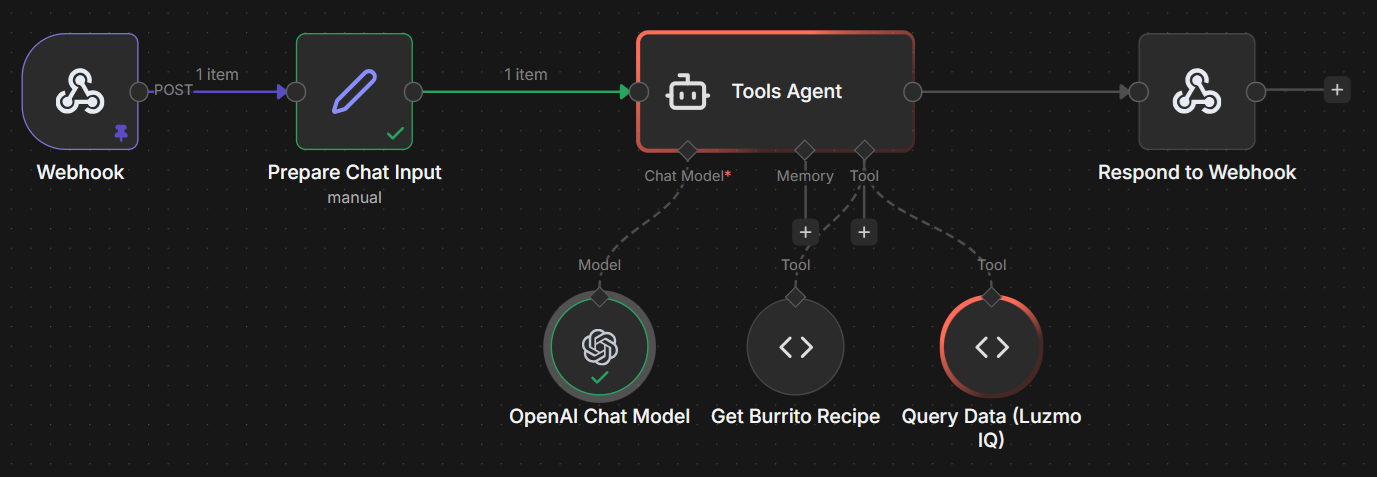
A complete, importable workflow like shown in the image above is available in the n8n directory of our example repository.
If your n8n version does not include the MCP Client Tool node, use a Custom Code Tool fallback named data_analysis . Give the tool a clear description so the agent knows when to invoke it:
Name:
data_analysisDescription:
Query analytics/business data via Luzmo. Use when the user asks about sales, data, metrics, dashboards, charts, or business intelligence.
Then add the following JavaScript in the node's code field:
const prompt = typeof query === 'string' ? query : (query?.prompt || '');
const responseMode =
  typeof query === 'object' && query?.response_mode ? query.response_mode : 'text';
const localeId = typeof query === 'object' && query?.locale_id ? query.locale_id : 'en';

const key = $json.luzmoEmbedKey;
const token = $json.luzmoEmbedToken;
const host = $json.luzmoApiHost;

if (!key || !token || !host) {
  return 'Error: Missing Luzmo request properties. Required: luzmoEmbedKey, luzmoEmbedToken, luzmoApiHost.';
}

try {
  const response = await this.helpers.httpRequest({
    url: `${host}/0.1.0/aiprompt`,
    method: 'POST',
    headers: { 'Content-Type': 'application/json' },
    body: {
      action: 'create',
      version: '0.1.0',
      key,
      token,
      properties: {
        agent: 'analyst',
        task: 'generate',
        stream: false,
        response_mode: responseMode,
        text_format: 'markdown',
        locale_id: localeId,
        input: [{ type: 'text', text: prompt }],
      },
    },
    json: true,
    returnFullResponse: true,
  });

  const status = response?.statusCode ?? response?.status ?? 200;
  const body = response?.body ?? response?.data ?? response;

  if (status >= 400) {
    return `Luzmo API error ${status}: ${JSON.stringify(body) || '(empty error body)'}`;
  }

  const message = body?.assistant_message?.message;
  const assets = body?.assistant_message?.aiMessageAssets ?? [];

  if (assets.length > 0) {
    return JSON.stringify({ message, assets });
  }

  return message || '(No data returned)';
} catch (err) {
  const status = err?.response?.statusCode ?? err?.response?.status ?? 'unknown';
  const body =
    typeof err?.response?.body === 'string'
      ? err.response.body
      : typeof err?.message === 'string'
      ? err.message
      : JSON.stringify(err);
  return `Luzmo API error ${status}: ${body}`;
} The Embed key-token pair and API host must be available in the workflow context before the agent runs — pass them in from your trigger or a preceding Set node (e.g. luzmoEmbedKey , luzmoEmbedToken , luzmoApiHost ). For API hosts, use https://api.luzmo.com (EU multitenant), https://api.us.luzmo.com (US multitenant), or your VPC-specific host.
Next Steps
AIPrompt : API reference for the analyst agent endpoint used in this guide
Generating an Embed Authorization token : how to create and scope embed tokens