Developing a custom chart
Overview
Custom Charts enable you to develop your own specialized data visualizations and connect them to Luzmo , allowing you and your users to easily add them to Luzmo dashboards. If our built-in chart types don't fully cover your specific visualization needs, you can create custom charts tailored exactly to your requirements.
Why use Custom Charts?
Complete visualization flexibility: Design exactly the chart types your data or use case needs, ensuring your end-users get precisely the visualization experience required.
Efficient implementation: Write only your visualization code and let Luzmo do the rest — querying, filtering and interactivity is all handled for you. Maintain complete control over your visualization UI/UX while leveraging Luzmo's powerful analytics infrastructure.
Full integration with Luzmo's capabilities : Your custom charts seamlessly integrate into Luzmo dashboards.
We provide a Custom Chart Builder that provides a complete development environment for building, testing, and packaging custom chart components.
Key features of the custom chart builder environment:
Interactive development environment with live preview
Configurable data slots for chart customization
Manifest-driven chart options rendered as ready-made UI controls
Localized slot and option labels
Automatic build and refresh on code changes
Schema validation for chart configuration
Production-ready packaging tools
Get started
Prerequisites
Node.js v22.13 or newer. The repository includes an
.nvmrcfile you can use withnvm use.npm
Install and run the builder
Clone the custom chart builder repository from our GitHub:
bashgit clone https://github.com/luzmo-official/custom-chart-builder.git cd custom-chart-builderInstall dependencies:
bashnpm installStart the custom chart builder development environment:
bashnpm run start
The development environment will be available at http://localhost .
This command starts three processes:
The Angular builder UI
A local bundle server that serves your custom chart files
A watcher that rebuilds your chart when files in
projects/custom-chart/srcchange
Once it's up and running, log in to the environment with your Luzmo account. This will bring you to the builder environment. The page features 3 areas:
Dataset selection : open the dropdown to select one of your datasets to show its columns.
Chart configuration : this area renders the data slots and chart options defined in your
manifest.json. Columns can be dragged to the chart slots. Once all required slots are filled, a Luzmo query executes and shows the returned data. If you define custom options, ready-made controls appear below the slots and update the preview as you change them.Chart visualization : this area executes the
rendermethod of your chart code with the data and options. It shows how your custom chart will look in a dashboard.
Understand the project structure
custom-chart-builder/
├── custom-chart-build-output/  # Production build files
├── projects/
│   ├── builder/                # Angular application for the chart builder UI
│   └── custom-chart/           # Your custom chart implementation
│       └── src/
│           ├── chart.ts        # Main chart rendering logic
│           ├── chart.css       # Chart styles
│           ├── manifest.json   # Data slots, chart options, and translations
│           ├── icon.svg        # Chart icon
│           └── index.ts        # Entry point
Your main working directory will be the projects/custom-chart/src directory, where your custom chart implementation is located. Do NOT update projects/builder .
Identify the key files
To create your own chart, you'll primarily need to edit these three files:
manifest.json - define your chart's data slots, configurable options, and translations.
chart.ts - this is where you'll implement the chart rendering logic.
chart.css - add styles for your chart's visual appearance.
The index.ts file is the entry point for the bundled chart module. In most cases you only need to keep it exporting the public chart functions from chart.ts :
export { render, resize, buildQuery, exportData } from './chart'; If you do not implement buildQuery or exportData , remove that name from this export. Luzmo calls exportData only when the bundled module exports it as a function.
Configure the manifest
The manifest.json file defines the data slots and configurable options of your custom chart. It can also contain translations for slot and option labels.
Define data slots
A data slot can receive one or multiple columns from your datasets. These slot definitions determine what type of columns are accepted by your chart and how the slots are displayed in Luzmo's editor. Based on the slot definitions, Luzmo will automatically generate and update queries to retrieve data in the format expected by your chart once all required slots are filled.
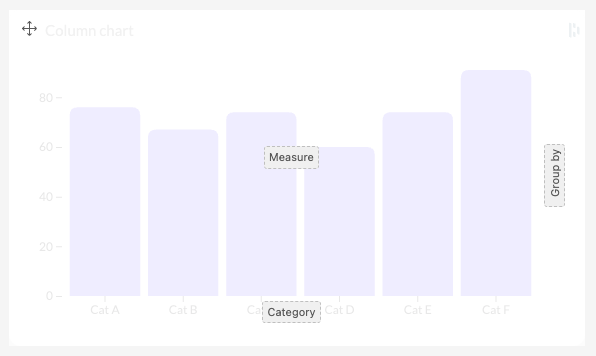
For example, Luzmo's built-in column chart has 3 slots: "Measure", "Category", and "Group by". As set in the slot definitions, the "Measure" slot will accept multiple columns, while the "Category" column will only accept one column. When the "Measure" slot contains more than 1 column, the "Group by" slot must be empty, and vice-versa.
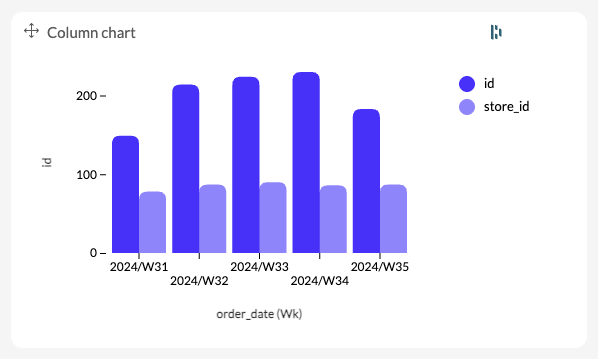
When a user adds columns to the chart, Luzmo will automatically retrieve the aggregated data, respecting any applied filters. In the example below, Luzmo will query the unique id's and unique store_id's, aggregated by week, from a dataset containing ecommerce orders. When developing the chart, that's the data you'll have to visualize.
Required properties
| Parameter | Type | Description |
|---|---|---|
name | string | Internal identifier for the slot. Note : within one chart, all slots must have unique names! Use for example 'x-axis' , 'y-axis' , 'category' , 'measure' , 'legend' , ... |
Optional properties
| Parameter | Type | Description |
|---|---|---|
acceptableColumnSubtypes | array | Restricts the slot to specific column subtypes. Supported values are 'duration' , 'currency' , 'coordinates' , and 'topography' . Mostly used with spatial slots, for example to accept only 'topography' on a choropleth map. |
acceptableDataFieldTypes | array | Data field types this slot accepts. Allowed values are 'numeric' , 'hierarchy' , 'datetime' , and 'spatial' . |
canAcceptDataIndependentOf | array | Names of other slots that this slot can be queried independently of. Slots that list each other are placed into separate query groups, each running as soon as its own required slots are filled. For example, set ["target"] on a revenue slot and ["revenue"] on a target slot when those two slots should produce two separate queries. |
canAcceptFormula | boolean | Whether the slot accepts Formula-type data fields in addition to regular columns. |
canAcceptMultipleDataFields | boolean | Whether the slot accepts more than one data field at the same time. |
description | string | Short explanation of the slot's purpose. |
isHidden | boolean | When true , the slot is not shown in the dashboard editor UI. |
isRequired | boolean | When true , the chart will not query data until this slot has been filled. |
label | string | User-facing name shown in the dashboard editor, e.g. 'Category', 'Value', 'Legend', ... |
noMultipleIfSlotsFilled | array | Names of other slots that, when filled, prevent this slot from accepting multiple data fields. For example, on a bar chart the measure slot uses ["legend"] so adding a legend forces a single measure. |
options | object | Per-slot behavior toggles such as aggregation, binning, and grand totals. See the "Slot behavior options" table below. |
position | string | Where the slot button appears within the chart in the dashboard editor. One of 'top-left' , 'top' , 'top-right' , 'right' , 'bottom-right' , 'bottom' , 'bottom-left' , 'left' , or 'middle' . Set a unique position on every visible slot; see Position the slots . |
requiredMinimumColumnsCount | number | Minimum number of data fields that must be added to the slot before the chart will query data. |
rotate | boolean | When true , the slot button in the editor is rendered rotated 90°. Use it on left and right slots. |
type | string | Data role used to auto-generate the query. One of 'categorical' or 'numeric' . Categorical slot content is added to query.dimensions , numeric slot content to query.measures . |
When you rely on automatically generated queries, the slot type is the most important contract between your manifest and your chart code. By default, Luzmo treats every slot as part of a single shared query:
Wait until every
isRequiredslot has been filled.Add content from
categoricalslots toquery.dimensionsand content fromnumericslots toquery.measures.Run the query and pass the result to
renderas a flat array of rows, where each row lists dimensions first, then measures, in the order the slots are declared in the manifest.
If your chart needs more than one query — for example a KPI tile that shows revenue next to an independent target — use canAcceptDataIndependentOf to split the slots into separate query groups. Slots that list each other belong to different groups, and Luzmo generates one query per group, runs each group as soon as its own required slots are filled, and delivers the result to render as an array with one entry per query ( data[0] is the first group's rows, data[1] the second, and so on). The shape is described in detail in the Understand the data shape section for multi-query charts.
For example, with the manifest below Luzmo generates two independent queries — one for revenue and one for target :
{
  "slots": [
    { "name": "revenue", "label": "Revenue", "type": "numeric", "canAcceptDataIndependentOf": ["target"] },
    { "name": "target",  "label": "Target",  "type": "numeric", "canAcceptDataIndependentOf": ["revenue"] }
  ]
}
Slot behavior options
| Parameter | Type | Description |
|---|---|---|
areDatetimeOptionsEnabled | boolean | When true , exposes date/time formatting options (week start, week-day name format, month name format) for datetime columns added to the slot. |
isAggregationDisabled | boolean | When true , hides the aggregation function picker for numeric columns added to the slot. |
isBinningDisabled | boolean | When true , hides the binning controls for numeric columns added to the slot. Binning groups continuous numeric values into ranges so they can be used as a category. |
isCumulativeSumEnabled | boolean | When true , lets users apply a cumulative-sum aggregation to numeric columns in this slot. |
showOnlyFirstSlotContentOptions | boolean | When false , hides the per-column options panel for the second and subsequent data fields in the slot. Useful for select-box-style slots where every entry should share the same options. |
Position the slots
In the editor's data overlay, each visible slot appears as a button on top of the chart, placed by its position . Put each slot next to the chart element it drives: category under the x-axis, value beside the y-axis, legend where the legend is drawn.
Set position on every visible slot. Unpositioned slots fill a corner-first fallback order (top-right, bottom-right, bottom-left, top-left, right, bottom, left, top, then middle), sorted by slot name rather than manifest order, and can land on positioned slots.
One slot per position. Slots sharing a
positionoverlap exactly, so a chart fits at most nine slots.Avoid the top corners. The editor's query-speed indicator and filter button sit there.
Rotate vertical edges. Set
rotate: trueonleftandrightslots.Use kebab-case. Write
top-left, nottopLeft(theposition-pickeroption format). Unknown values get no placement at all.
┌──────────────────────────────────────────────────────┐
│ query speed                           item filter    │ ← editor controls
│ top-left              top               top-right    │
│                                                      │
│ left                 middle                 right    │
│                                                      │
│ bottom-left          bottom          bottom-right    │
└──────────────────────────────────────────────────────┘| Slot role | position | rotate |
|---|---|---|
| X-axis or category | bottom | false |
| Y-axis or value axis | left | true |
| Main measure without an axis (KPI, donut) | middle | false |
| Legend, group by, or color | right | true |
| Size or secondary measure | bottom-right or top | false |
| Extra dimensions | bottom-left or top | false |
Scatter plot example:
{
  "slots": [
    { "name": "x-axis", "label": "X-axis", "type": "numeric", "isRequired": true, "position": "bottom", "rotate": false },
    { "name": "y-axis", "label": "Y-axis", "type": "numeric", "isRequired": true, "position": "left", "rotate": true },
    { "name": "size", "label": "Size", "type": "numeric", "position": "bottom-right", "rotate": false },
    { "name": "color", "label": "Color", "type": "categorical", "position": "right", "rotate": true }
  ]
}
Configure chart options
Add a top-level options array to manifest.json to let dashboard editors configure the appearance and behavior of your chart. Luzmo Studio and the Custom Chart Builder render dynamic UI controls from this configuration. You define the controls; you do not need to build a settings UI.
The manifest only defines and stores the option values. Your chart code must read those values from the options argument of render and resize and apply the corresponding behavior or styling.
For example, this excerpt from the Custom Chart Builder's example manifest defines the Layout group and its labels:
{
  "options": [
    {
      "key": "layout",
      "type": "group",
      "open": true,
      "children": [
        {
          "key": "layout.mode",
          "control": {
            "type": "picker",
            "default": "grouped",
            "enum": ["grouped", "stacked", "percentage"]
          }
        },
        {
          "key": "layout.orientation",
          "control": {
            "type": "radio-button-group",
            "default": "vertical",
            "enum": ["horizontal", "vertical"]
          }
        },
        {
          "key": "layout.maxCategories",
          "control": {
            "type": "number-field",
            "default": 10,
            "min": 1,
            "max": 100,
            "step": 1
          }
        }
      ]
    }
  ],
  "translations": {
    "en": {
      "options": {
        "groups": {
          "layout": { "label": "Layout" }
        },
        "layout.mode": {
          "label": "Display mode",
          "enum": {
            "grouped": "Grouped",
            "stacked": "Stacked",
            "percentage": "100% stacked"
          }
        },
        "layout.orientation": {
          "label": "Orientation",
          "enum": {
            "horizontal": "Horizontal",
            "vertical": "Vertical"
          }
        },
        "layout.maxCategories": {
          "label": "Maximum categories"
        }
      }
    }
  }
}
Luzmo turns these definitions into the controls at the top of the settings panel. The complete example manifest also defines the Appearance , Title , and Legend groups shown here:
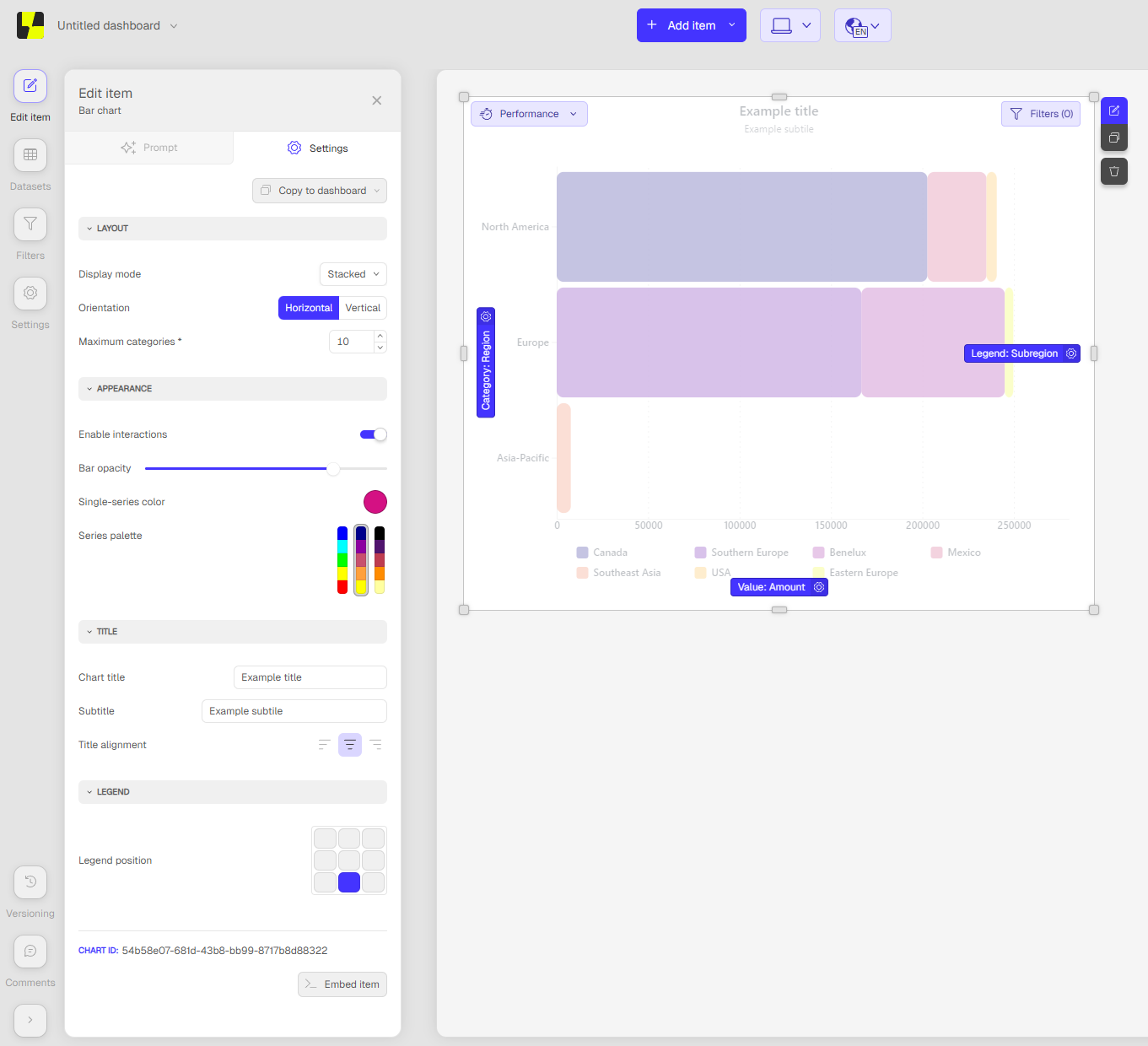
In this screenshot, the editor has selected Stacked , Horizontal , and a maximum of 10 categories. Your chart receives those saved values as a nested object in ChartParams.options :
{
  "layout": {
    "mode": "stacked",
    "orientation": "horizontal",
    "maxCategories": 10
  }
}
Option configuration structure
Top-level entries must be groups. Groups render as accordion sections and can contain controls, dividers, or nested groups.
| Property | Type | Description |
|---|---|---|
key | string | Unique identifier used to find the group's translated label. A group key does not determine where control values are stored. |
type | "group" | Identifies the entry as a group. |
label | string | Fallback label when no translation is available. If omitted, the group key is shown. |
open | boolean | Whether the group is expanded initially. Defaults to false . |
children | array | Controls, { "type": "divider" } entries, or nested groups rendered inside this group. |
Each control entry has a key and a control object:
| Property | Type | Description |
|---|---|---|
key | string | Unique path at which the value is stored in the runtime options object. Use dot notation for nested objects, for example legend.position . |
control.type | string | One of the supported control types listed below. The value must match exactly. |
control.default | Depends on the control | Initial value used when the dashboard item has no saved value for this key. Define a default for predictable first renders. |
control.label | string | Fallback label when no translation is available. If omitted, the full option key is shown. |
control.tooltip | string | Help text displayed from the control label. |
control.placeholder | string | Placeholder for text and numeric input controls. |
Control keys must be unique. Avoid defining both a value and descendants below the same path, such as legend and legend.position .
theme is reserved for the dashboard theme provided by Luzmo. Do not define an option with the key theme or any theme.* key; Luzmo rejects those manifest configurations.
Defaults are expanded from dotted keys into a nested object. Saved values take precedence over defaults, while newly added defaults fill values that have not been saved yet. For example, these controls:
[
  {
    "key": "layout.mode",
    "control": { "type": "picker", "default": "grouped", "enum": ["grouped", "stacked"] }
  },
  {
    "key": "layout.showValues",
    "control": { "type": "switch", "default": true }
  }
]
produce the following values in render and resize :
{
  "layout": {
    "mode": "grouped",
    "showValues": true
  }
}
When an editor changes a control, Luzmo stores the updated options on the dashboard item and calls render again with the existing chart data. Changing these presentation options does not execute a new data query.
Supported control types
| Control type | Stored value | Control-specific properties |
|---|---|---|
picker | string | enum : selectable values as a string array or keyed object. |
radio-button-group | string | enum : values displayed as a compact radio-button group. |
action-button-group | string or string[] | values : keyed button definitions; selects : "single" or "multiple" . |
switch | boolean | No additional properties. |
slider | number | min , max , and step . |
number-field | number | min , max , step , placeholder , minWidthInputField , and debounce . |
text-field | string | placeholder . |
multi-language-field | Record<string, string> | placeholder ; the stored object contains one value per language code. |
color-picker | string | Use a color string such as #3366cc as the default. |
color-palette-picker | string | enum : supported palette keys offered to the user. |
color-range | Array<{ color: string, value?: number }> | Range editing, percentage, alpha-channel, and value-display properties described below. |
position-picker | string | positions : positions offered in the 3×3 picker; readonly disables editing. |
positions-number-field | Record<string, number> | positions : numeric inputs to show; positionConfiguration : constraints per position. |
Choice controls
Use picker for a dropdown and radio-button-group when all choices should be visible. Both accept an enum array. The selected key is stored as a string.
[
  {
    "key": "layout.mode",
    "control": {
      "type": "picker",
      "default": "grouped",
      "enum": ["grouped", "stacked", "percentage"]
    }
  },
  {
    "key": "layout.orientation",
    "control": {
      "type": "radio-button-group",
      "default": "vertical",
      "enum": ["horizontal", "vertical"]
    }
  }
]
An action-button-group displays icon or text buttons. Define each button under values ; a button can have an iconName , buttonText , and label. The label is used as accessible text and as the tooltip for an icon button.
{
  "key": "title.alignment",
  "control": {
    "type": "action-button-group",
    "default": ["center"],
    "selects": "single",
    "values": {
      "left": { "iconName": "alignLeft", "label": "Align left" },
      "center": { "iconName": "alignCenter", "label": "Align center" },
      "right": { "iconName": "alignRight", "label": "Align right" }
    }
  }
}
For a single-selection action group, define default as a one-element array. The initial default can therefore reach your chart as an array, while a subsequent user selection is stored as a string. Normalize both forms when reading it:
const alignment = Array.isArray(options.title?.alignment)
  ? options.title.alignment[0]
  : options.title?.alignment;
Supported iconName values are alignBottom , alignMiddle , alignTop , alignLeft , alignCenter , alignRight , ban , borderSolid , borderDashed , borderDotted , compress , expand , arrowsExpand , arrowsHorizontal , arrowsVertical , italic , bold , underline , rows , columns , and table .
Boolean, numeric, and text controls
[
  {
    "key": "appearance.interactive",
    "control": { "type": "switch", "default": true }
  },
  {
    "key": "appearance.opacity",
    "control": { "type": "slider", "default": 85, "min": 10, "max": 100, "step": 5 }
  },
  {
    "key": "layout.maxCategories",
    "control": {
      "type": "number-field",
      "default": 10,
      "min": 1,
      "max": 100,
      "step": 1,
      "placeholder": "Number of categories"
    }
  },
  {
    "key": "title.subtitle",
    "control": {
      "type": "text-field",
      "default": "Revenue by product",
      "placeholder": "Enter a subtitle"
    }
  },
  {
    "key": "title.text",
    "control": {
      "type": "multi-language-field",
      "default": {
        "en": "Regional performance",
        "fr": "Performance régionale"
      },
      "placeholder": "Enter a chart title"
    }
  }
]
slider and number-field use min , max , and step to constrain the input. number-field.debounce sets the delay in milliseconds before a change is applied, and minWidthInputField accepts a CSS width such as 5rem .
A multi-language-field stores an object keyed by language code. In your chart, choose the current language and provide a fallback:
const title = options.title?.text?.[language] ?? options.title?.text?.en ?? '';Color controls
[
  {
    "key": "appearance.color",
    "control": { "type": "color-picker", "default": "#3366cc" }
  },
  {
    "key": "appearance.palette",
    "control": {
      "type": "color-palette-picker",
      "default": "Spectrum",
      "enum": ["Spectrum", "Plasma", "Inferno"]
    }
  },
  {
    "key": "appearance.ranges",
    "control": {
      "type": "color-range",
      "default": [
        { "color": "#d73027", "value": 0 },
        { "color": "#fee08b", "value": 50 },
        { "color": "#1a9850", "value": 100 }
      ],
      "percentage": true,
      "editRangeSize": true,
      "minimumRangeSize": 2,
      "noAlphaChannel": true,
      "reverse": false,
      "debounce": 200
    }
  }
]
The supported palette keys are Spectral , RdYlGn , RdBu , PiYG , PRGn , RdYlBu , BrBG , RdGy , PuOr , Paired , Set1 , Set3 , OrRd , PuBu , BuPu , Oranges , BuGn , GnBu , YlOrBr , YlGn , Reds , RdPu , Greens , YlGnBu , Purples , Greys , YlOrRd , PuRd , Blues , PuBuGn , Spectrum , BlueRed , Plasma , Viris , Incan , Fire , Inferno , Ocean , and Sunrise .
color-range supports the following additional properties:
| Property | Type | Description |
|---|---|---|
percentage | boolean | Displays range values as percentages. |
reverse | boolean | Reverses the visual order of the range. |
noAlphaChannel | boolean | Disables opacity selection in the color pickers. |
editRangeSize | boolean | Lets the editor add or remove range entries. |
minimumRangeSize | number | Minimum number of entries when range-size editing is enabled. Defaults to 2 . |
negativeInfinityValue | boolean | Treats the first entry as the color from negative infinity up to the next value; the first entry's numeric value is ignored. |
noValues | boolean | Hides numeric inputs so the editor changes colors only. |
readOnlyColorPicker | boolean | Prevents the range colors from being edited. |
debounce | number | Delay in milliseconds before a change is applied. |
Position controls
position-picker uses camelCase values, unlike the kebab-case slot position :
{
  "key": "legend.position",
  "control": {
    "type": "position-picker",
    "default": "topRight",
    "positions": [
      "topLeft",
      "top",
      "topRight",
      "left",
      "center",
      "right",
      "bottomLeft",
      "bottom",
      "bottomRight"
    ]
  }
}
The complete set is topLeft , top , topRight , left , center , right , bottomLeft , bottom , and bottomRight . Omit positions to show every position except center .
positions-number-field uses kebab-case names for corners. Its value is an object containing one number per configured position:
{
  "key": "layout.padding",
  "control": {
    "type": "positions-number-field",
    "default": { "top": 8, "right": 12, "bottom": 8, "left": 12 },
    "positions": ["top", "right", "bottom", "left"],
    "positionConfiguration": {
      "top": { "min": 0, "max": 100, "step": 1, "default": 8 },
      "right": { "min": 0, "max": 100, "step": 1, "default": 12 },
      "bottom": { "min": 0, "max": 100, "step": 1, "default": 8 },
      "left": { "min": 0, "max": 100, "step": 1, "default": 12 }
    }
  }
}
The complete set is top , right , bottom , left , top-left , top-right , bottom-left , bottom-right , and center . Each positionConfiguration entry can define min , max , step , and default .
Add translations
Add a top-level translations object to localize slot labels, option groups, control labels, placeholders, tooltips, and enum labels. Each key is a language code.
{
  "translations": {
    "en": {
      "slots": {
        "category": { "label": "Category" }
      },
      "options": {
        "groups": {
          "layout": { "label": "Layout" }
        },
        "layout.mode": {
          "label": "Display mode",
          "tooltip": "Choose how multiple series are combined.",
          "enum": {
            "grouped": "Grouped",
            "stacked": "Stacked",
            "percentage": "100% stacked"
          }
        },
        "title.text": {
          "label": "Chart title",
          "placeholder": "Enter a chart title"
        }
      }
    },
    "fr": {
      "slots": {
        "category": { "label": "Catégorie" }
      },
      "options": {
        "groups": {
          "layout": { "label": "Disposition" }
        },
        "layout.mode": {
          "label": "Mode d'affichage",
          "enum": {
            "grouped": "Groupé",
            "stacked": "Empilé",
            "percentage": "Empilé à 100 %"
          }
        },
        "title.text": {
          "label": "Titre du graphique",
          "placeholder": "Saisissez un titre"
        }
      }
    }
  }
}| Translation path | Description |
|---|---|
translations.<language>.slots.<slotKey>.label | Label for a data slot. <slotKey> must match the slot's name . |
translations.<language>.options.groups.<groupKey>.label | Label for an option group. <groupKey> must match the group's key . |
translations.<language>.options.<optionKey>.label | Label for a control. <optionKey> is the complete dotted control key. |
translations.<language>.options.<optionKey>.tooltip | Help text displayed from the control label. |
translations.<language>.options.<optionKey>.placeholder | Localized placeholder for text controls. |
translations.<language>.options.<optionKey>.enum.<value> | Localized label for a picker, radio-button, or action-button value. |
Luzmo first uses the dashboard or builder's current language, then falls back to en . Within a language, translated labels take precedence over inline label values. If neither is present, the group or option key is shown. The Custom Chart Builder creates its language picker from the language codes present in translations . |
Review the complete manifest example
Before building, check that:
Every slot has a unique
nameand atype.Every visible slot has a unique kebab-case
positionnext to the chart element it drives.leftandrightslots setrotate: true.top-leftandtop-rightare used only when no other position is free.Slot order matches the row order
renderexpects.
Here's a complete example of a manifest.json file for a basic column chart:
{
  "slots": [
    {
      "name": "category",
      "rotate": false,
      "label": "Category",
      "type": "categorical",
      "options": {
        "isBinningDisabled": true,
        "areDatetimeOptionsEnabled": true
      },
      "isRequired": true,
      "position": "bottom"
    },
    {
      "name": "measure",
      "rotate": true,
      "label": "Value",
      "type": "numeric",
      "options": {
        "isAggregationDisabled": false
      },
      "isRequired": true,
      "position": "middle"
    },
    {
      "name": "legend",
      "rotate": false,
      "label": "Legend",
      "type": "categorical",
      "options": {
        "isBinningDisabled": true
      },
      "isRequired": false,
      "position": "right"
    }
  ],
  "options": [
    {
      "key": "bars",
      "type": "group",
      "open": true,
      "children": [
        {
          "key": "bars.roundedCorners",
          "control": {
            "type": "slider",
            "default": 4,
            "min": 0,
            "max": 20,
            "step": 1
          }
        },
        {
          "key": "bars.showValue",
          "control": { "type": "switch", "default": false }
        },
        {
          "key": "bars.color",
          "control": { "type": "color-picker", "default": "#3366cc" }
        }
      ]
    }
  ],
  "translations": {
    "en": {
      "slots": {
        "category": { "label": "Category" },
        "measure": { "label": "Value" },
        "legend": { "label": "Legend" }
      },
      "options": {
        "groups": {
          "bars": { "label": "Bars" }
        },
        "bars.roundedCorners": { "label": "Rounded corners" },
        "bars.showValue": { "label": "Show values" },
        "bars.color": { "label": "Bar color" }
      }
    }
  }
}
Implement the chart
To create a working Luzmo custom chart, you'll need to implement at least the render and resize functions.
You can also implement the buildQuery function to create one or more custom data queries if your chart requires them. If your chart does not require custom data queries, you can omit this function entirely and Luzmo queries will be automatically generated based on your slot configurations.
Implement exportData when the CSV or Excel download should contain a table you define.
You can find these methods in the chart.ts file, located in the projects/custom-chart/src directory.
Understand the data shape
The data property passed to render contains the rows returned by the Luzmo queries. Each row is an array, and the array order follows the query output order: dimensions first, then measures.
For the example manifest above, where category and legend are categorical slots and measure is numeric, the data argument passed to render can look like this:
// Data response for a single query: an array of rows
[
  // First row of data
  [
    // Hierarchy data (text values), returns:
    //  - Value as stored in the data source as "id"
    //  - Translated "name" & "colors" as defined in the column's Hierarchy
    // https://developer.luzmo.com/api/updateHierarchy
    {
      id: 'Asia-Pacific',
      name: { en: 'Asia-Pacific', nl: 'Azië-Pacific', fr: 'Asie-Pacifique' },
      color: null
    },
    // Datetime data returned as RFC3339 datetime format
    '2024-01-01T00:00:00.000Z',
    // Numeric data
    3959978.123
  ],
  // Second row of data
  [
    {
      id: 'Asia-Pacific',
      name: { en: 'Asia-Pacific', nl: 'Azië-Pacific', fr: 'Asie-Pacifique' },
      color: null
    },
    '2024-01-01T00:00:00.000Z',
    3959978.123
  ],
  ...
]
With all three slots filled, row[0] is the category (a hierarchy object with id , name , and color fields), row[1] is the legend (an ISO 8601 datetime string in this example, because a datetime column was dragged onto that slot), and row[2] is the measure (a number).
Because legend is optional, its value is only present when a user has filled the slot. When the slot is empty, every row is a 2-element array ( [category, measure] ) and measure shifts to row[1] . Inspect the slots parameter inside render and adjust your row access accordingly:
const hasLegend = (slots.find(s => s.name === 'legend')?.content?.length ?? 0) > 0;

data.forEach((row) => {
  const category = row[0];
  const legend = hasLegend ? row[1] : undefined;
  const measure = hasLegend ? row[2] : row[1];
  // category.id    -> 'Asia-Pacific'
  // legend         -> '2024-01-01T00:00:00.000Z' (undefined when the legend slot is empty)
  // measure        -> 3959978
});
Common value shapes are:
Numeric measures:
numberDatetime dimensions: ISO8601 datetime strings
Hierarchy dimensions: an object with optional
idandnamefields and optionalcolorfieldSpatial values: objects such as coordinates or topography data, depending on the selected column subtype
When your buildQuery returns multiple queries, data is instead an array with one entry per query, in the same order the queries appear in the returned array. Each entry holds the result of its query. For example, the multi-query example below returns a revenue and a target query that each fetch a single measure, so data looks like:
// Array with two data responses from two queries
[
  // First data response (revenue query result)
  [
    // First row response
    [ 827.31 ]
  ],
  // Second data response (target query result)
  [
    // First row response
    [ 1200 ]
  ]
]
Your chart should handle incomplete input gracefully. While users are configuring a dashboard, required slots can be empty and data can be an empty array. In those cases, render a lightweight empty state or placeholder instead of assuming every row and slot exists.
Implement render
The render function is the main function that will be called by Luzmo to initially create and render your chart. It will receive a ChartParams object as a parameter, which contains the following properties:
// Import required types
import type { ItemData, Slot, SlotConfig, ThemeConfig } from '@luzmo/dashboard-contents-types';
import * as d3 from 'd3';

interface ChartParams {
  container: HTMLElement;           // The DOM element where your chart will be rendered
  data: ItemData['data'];           // The data rows from the server
  slots: Slot[];                    // The filled slots with column mappings
  slotConfigurations: SlotConfig[]; // The configuration of available slots
  options: Record<string, any> & { theme?: ThemeConfig }; // Custom option values plus the dashboard theme
  timezoneId?: string;              // Dashboard IANA timezone (e.g., 'America/New_York')
  language: string;                 // Current language code (e.g., 'en')
  dimensions: {                     // Width and height of the chart container in pixels
    width: number;
    height: number;
  };
}

// Render function implementation
export function render({
  container,
  data = [],
  slots = [],
  slotConfigurations = [],
  options = {},
  timezoneId,
  language = 'en',
  dimensions: { width = 600, height = 400 } = {}
}: ChartParams): void {
  // 1. Clear the container
  container.innerHTML = '';

  // 2. Check if data exists
  const rows = data ?? [];
  const hasData = rows.length > 0;

  if (!hasData) {
    container.textContent = 'Add data to preview this chart.';
    return;
  }

  // 3. Extract and process data
  const chartData = rows.map(row => {
    const rawCategory = row[0];
    let categoryValue: unknown = rawCategory ?? 'Unknown';

    if (typeof rawCategory === 'object' && rawCategory !== null && 'name' in rawCategory) {
      const categoryObject = rawCategory as { name?: string | Record<string, string>; id?: string };
      categoryValue =
        typeof categoryObject.name === 'object' && categoryObject.name !== null
          ? categoryObject.name[language] ?? categoryObject.name.en ?? Object.values(categoryObject.name)[0]
          : categoryObject.name ?? categoryObject.id ?? 'Unknown';
    }

    return {
      category: String(categoryValue),
      value: Number(row[1] ?? 0)
    };
  });

  // 4. Create visualization (SVG, Canvas, etc.)
  const svg = d3.select(container)
    .append('svg')
    .attr('width', width)
    .attr('height', height);

  // 5. Add your chart elements here...

  // 6. Store state for resize
  (container as any).__chartData = chartData;
}
The custom values use the nested structure created from the manifest's dotted option keys. The host also adds the active dashboard theme at options.theme ; reserve that top-level key for the host-provided theme.
For the example manifest, the initial options value contains the manifest defaults:
{
  bars: {
    roundedCorners: 4,
    showValue: false,
    color: '#3366cc'
  },
  theme: {
    // Active dashboard theme
  }
}
Saved dashboard values are merged over these defaults. When a later chart version introduces a new control, its default is therefore available to existing dashboard items unless that item already has a saved value at the same key.
Implement resize
The resize function is called when the chart is resized. It will receive a ChartParams object as a parameter, which contains the following properties. The dimensions property will contain the new width and height of the chart, which you can use to update the sizes of the elements in your chart.
A common pattern is to store processed chart data on the container during render , then read it back in resize so resizing does not require reprocessing the original rows. Reuse the DOM elements created by render when possible, and update their dimensions.
export function resize({
  container,
  slots = [],
  slotConfigurations = [],
  options = {},
  language = 'en',
  dimensions: { width = 600, height = 400 } = {}
}: ChartParams): void {
  const chartData = (container as any).__chartData ?? [];

  const svg = d3.select(container)
    .select<SVGSVGElement>('svg')
    .attr('width', width)
    .attr('height', height);

  // Update scales, axes, and marks using chartData and the new dimensions.
  // If your chart is simpler, you can also call a shared updateChart(svg, chartData, dimensions) helper.
}
Customize data queries with buildQuery (optional)
The buildQuery function takes the slot configurations and filled slots and returns an array of Luzmo queries that fetch the data your chart needs. Return a single-element array when all of the chart's data belongs in one grouped result set (for example, a bar chart with one category and one measure). Return multiple queries when the chart has independent data areas, such as a KPI tile next to a benchmark, or a table that loads its detail rows separately from a summary row.
IMPORTANT: The
buildQuery()method is completely optional. If you don't implement this method, Luzmo will automatically generate and run the appropriate queries for your chart based on the slots configuration. You only need to implement this method if you want to customize the query behavior.
For a full reference of the available query parameters, see the Luzmo Query Syntax Documentation .
The same canAcceptDataIndependentOf rule from the manifest section applies when you implement buildQuery : when your buildQuery returns multiple queries, the slots that feed those independent queries must declare canAcceptDataIndependentOf in manifest.json . Without this declaration, Luzmo will wait for every required slot to be filled before calling buildQuery , which prevents the independent queries from running on their own:
{
  "slots": [
    {
      "name": "revenue",
      "label": "Revenue",
      "type": "numeric",
      "canAcceptDataIndependentOf": ["target"]
    },
    {
      "name": "target",
      "label": "Target",
      "type": "numeric",
      "canAcceptDataIndependentOf": ["revenue"]
    }
  ]
}
Single-query example:
import type {
  ItemQuery,
  ItemQueryDimension,
  ItemQueryMeasure,
  Slot,
  SlotConfig
} from '@luzmo/dashboard-contents-types';

interface BuildQueryParams {
  slots: Slot[];
  slotConfigurations: SlotConfig[];
}

export function buildQuery({
  slots = [],
  slotConfigurations = []
}: BuildQueryParams): ItemQuery[] {
  const dimensions: ItemQueryDimension[] = [];
  const measures: ItemQueryMeasure[] = [];

  // Extract category dimension
  const categorySlot = slots.find(slot => slot.name === 'category');
  const categoryContent = categorySlot?.content;

  if (categoryContent?.length > 0) {
    const [category] = categoryContent;
    dimensions.push({
      dataset_id: category.datasetId,
      column_id: category.columnId,
      level: category.level || 1
    });
  }

  // Extract measure
  const measureSlot = slots.find(slot => slot.name === 'measure');
  const measureContent = measureSlot?.content;

  if (measureContent?.length > 0) {
    const [measure] = measureContent;

    // Handle different types of measures
    if (measure.aggregationFunc && ['sum', 'average', 'min', 'max', 'count'].includes(measure.aggregationFunc)) {
      measures.push({
        dataset_id: measure.datasetId,
        column_id: measure.columnId,
        aggregation: { type: measure.aggregationFunc }
      });
    }
    else {
      measures.push({
        dataset_id: measure.datasetId,
        column_id: measure.columnId
      });
    }
  }

  // Add ordering by category, if category slot is filled.
  const order: ItemQuery['order'] = categoryContent?.[0]
    ? [{
        dataset_id: categoryContent[0].datasetId,
        column_id: categoryContent[0].columnId,
        order: 'asc'
      }]
    : [];

  // Add default limit of 10000 rows for performance reasons.
  const limit = { by: 10000, offset: 0 };

  const query: ItemQuery = {
    dimensions,
    measures,
    order,
    limit
  };

  return [query];
}
buildQuery always returns an array. Wrap a single query in [query] , or push multiple query objects onto the array when your chart needs independent result sets. You do not need to send a separate queryLoaded event for the queries returned here — that event is only for runtime query changes initiated from inside your chart, such as the user sorting a custom table or paging through results.
Multiple-query example:
import type {
  ItemQuery,
  ItemQueryMeasure,
  Slot,
  SlotConfig
} from '@luzmo/dashboard-contents-types';

interface BuildQueryParams {
  slots: Slot[];
  slotConfigurations: SlotConfig[];
}

function getFirstMeasure(slots: Slot[], slotName: string): ItemQueryMeasure | undefined {
  const content = slots.find(slot => slot.name === slotName)?.content?.[0];

  if (!content) {
    return undefined;
  }

  const measure: ItemQueryMeasure = {
    dataset_id: content.datasetId,
    column_id: content.columnId
  };

  if (content.aggregationFunc) {
    measure.aggregation = { type: content.aggregationFunc };
  }

  return measure;
}

export function buildQuery({
  slots = [],
  slotConfigurations = []
}: BuildQueryParams): ItemQuery[] {
  const revenueMeasure = getFirstMeasure(slots, 'revenue');
  const targetMeasure = getFirstMeasure(slots, 'target');
  const queries: ItemQuery[] = [];

  if (revenueMeasure) {
    queries.push({
      measures: [revenueMeasure],
      limit: { by: 1, offset: 0 }
    });
  }

  if (targetMeasure) {
    queries.push({
      measures: [targetMeasure],
      limit: { by: 1, offset: 0 }
    });
  }

  return queries;
}
Each query in the returned array is executed separately, and the results are delivered to your chart in the same order — data[0] holds the result of the first query, data[1] the second, and so on. Keep that order stable across renders so your chart can index into data reliably (in the example above, data[0] is the revenue result and data[1] is the target result).
Export chart data with exportData (optional)
Implement exportData to choose the rows and columns in the CSV and Excel files users download from the chart. Define it in chart.ts and re-export it from index.ts . Luzmo detects the function when the chart module loads.
Luzmo calls exportData when the user picks one of these data exports:
exportType | Downloaded file |
|---|---|
csv | CSV |
csv-raw | CSV |
xlsx | Excel |
xlsx-raw | Excel |
PNG export captures the rendered chart through a separate image path.
A single-query chart can omit exportData . Luzmo then writes that query result to the file, using the slot columns. A chart whose buildQuery returns more than one query shows CSV and Excel actions only after exportData is exported. Each download is one table, and your function decides how those query results are combined. Once the function is exported, it supplies the file for every data export type above, so return a complete table for each exportType .
The function receives the same ChartParams object as render , plus the chosen exportType and a requestId that identifies the export on the host. Chart code can ignore requestId . The function may be async . Luzmo shows an exporting overlay while it runs and waits up to 30 seconds.
Return an object with columns and rows :
type CustomExportCell = string | number | boolean | null;

interface CustomExportTable {
  columns: string[];
  rows: CustomExportCell[][];
}

interface ExportDataParams extends ChartParams {
  exportType: 'csv' | 'csv-raw' | 'xlsx' | 'xlsx-raw';
  requestId: string;
}
columns is the list of header labels. Those labels become the first CSV row and the Excel column names. rows is the list of data rows, in the order they should appear in the file. An empty rows array downloads a file that contains only the headers.
Each cell is a string, number, boolean, or null . A row may contain fewer cells than columns ; the missing cells are empty in the file. Luzmo downloads nothing when any of the following is true:
exportDatathrows, or the returned promise rejectsthe function is still running after 30 seconds
columnsis missing, or a header is not a stringrowsis missing, or a row is not an arraya row contains more cells than
columnsa cell is an object, an array, or
undefined
Return the cell values; Luzmo serializes them into the selected file format. Luzmo does not apply the formats configured on the chart slots:
CSV (
csvandcsv-raw). Luzmo quotes every string and escapes quotes inside it. When a string starts with=,+,-,@, a tab, or a carriage return, Luzmo inserts a'before quoting it so spreadsheet applications open it as text instead of evaluating it as a formula. Numbers are not prefixed, so return numeric measures as numbers. For example, the number-12stays numeric, while the string"-12"is prefixed because it is text. Luzmo writes booleans astrueorfalseandnullas an empty cell.Excel (
xlsxandxlsx-raw). Luzmo stores a column as numbers in General format when every cell in it is a number ornull. A column that contains a string or a boolean is stored as text. Booleans are written astrueandfalse.nullis an empty cell. The slot's number format is not applied, and the return value cannot specify an Excel number format. Return a number when the column should stay numeric, or a string when the cell should show specific display text or preserve more than Excel's 15 significant digits.
csv and csv-raw are written with the same CSV rules, and xlsx and xlsx-raw are written with the same Excel rules. Use exportType to choose display values or source values. The formatters in the next section can build the display strings for a formatted CSV.
The example below is the revenue and target chart from the buildQuery section. That function returns two queries, so data[0] is the revenue rows and data[1] is the target rows. Without exportData , this chart has no CSV or Excel download, because Luzmo cannot combine those two results into the one table a download needs. render and exportData both read each result through firstMeasure . A missing measure stays null , which downloads as an empty cell. Number(null) would download 0 .
// This example assumes both revenue and target measures are configured.
// Each measure is queried separately.
// render combines the query results for visualization.
// exportData combines the same results so the export contains the values shown.
type QueryRows = unknown[][];

function firstMeasure(queryRows: QueryRows | undefined): number | null {
  const value = queryRows?.[0]?.[0];

  return typeof value === 'number' ? value : null;
}

export function render({ container, data = [] }: ChartParams): void {
  const queryResults = data as unknown as QueryRows[];
  const revenue = firstMeasure(queryResults[0]);
  const target = firstMeasure(queryResults[1]);

  container.textContent = revenue == null || target == null
    ? 'Add revenue and target to preview this chart.'
    : `${revenue} / ${target}`;
}

export function exportData({ data = [] }: ExportDataParams): CustomExportTable {
  const queryResults = data as unknown as QueryRows[];

  return {
    columns: ['Metric', 'Value'],
    rows: [
      ['Revenue', firstMeasure(queryResults[0])],
      ['Target', firstMeasure(queryResults[1])]
    ]
  };
}
While users are still configuring the chart, data can be empty. Return the headers and an empty rows array in that case, or return the headers with null measure cells as the example does.
Format data
Luzmo provides formatter utilities that format your data based on the format configured for the column, which users can change in the dashboard editor. Import formatter for column formatting and getValueForFormatter to prepare datetime values for the dashboard timezone:
import { formatter, getValueForFormatter } from '@luzmo/analytics-components-kit/utils';formatter takes slot content (i.e. a column) as an argument and returns a function that applies the format configured for that column. It automatically handles:
Number formatting (thousands separators and decimal places)
Date/time formatting
Currency formatting
Percentage formatting
For datetime slots, first pass the raw query value, slot content, and timezoneId to getValueForFormatter . Then pass the returned value to the slot's formatter. This two-stage flow applies the correct timezone behavior for the datetime level without requiring you to calculate offsets yourself.
The hosted chart receives the dashboard's IANA timezone in ChartParams.timezoneId , including a timezone override set while embedding a dashboard. The Custom Chart Builder uses your browser's IANA timezone for both the query and ChartParams.timezoneId . Hour-level and finer values require this timezone to display correctly. Year-through-day groupings are already shifted server-side, and the utility prevents them from being shifted a second time. For compatibility with older Luzmo hosts that do not provide timezoneId , the utility falls back to the browser's local timezone.
Do not manually apply timezone offsets or construct a Date from the raw query value before calling getValueForFormatter . Non-datetime categorical values and numeric, currency, and percentage measures can continue to use formatter directly.
Example usage in your chart:
import { formatter, getValueForFormatter } from '@luzmo/analytics-components-kit/utils';

export function render({ data, slots, timezoneId, language = 'en' }: ChartParams): void {
  const rows = data ?? [];
  const categorySlot = slots.find(slot => slot.name === 'category');
  const measureSlot = slots.find(slot => slot.name === 'measure');
  const categoryContent = categorySlot?.content?.[0];
  const measureContent = measureSlot?.content?.[0];

  const measureFormatter = measureContent
    ? formatter(measureContent)
    : (val: any) => String(val);

  const categoryFormatter = categoryContent
    ? formatter(categoryContent, {
        level: categoryContent.level ?? 9,
        locale: language
      })
    : (val: any) => String(val);

  const formattedData = rows.map(row => {
    const rawCategoryValue =
      typeof row[0] === 'object' && row[0] !== null && 'name' in row[0]
        ? (row[0] as { name?: string | Record<string, string> }).name
        : row[0] ?? 'Unknown';
    const rawCategory =
      typeof rawCategoryValue === 'object' && rawCategoryValue !== null
        ? (rawCategoryValue as Record<string, string>)[language] ??
          (rawCategoryValue as Record<string, string>).en ??
          Object.values(rawCategoryValue)[0]
        : rawCategoryValue;

    const categoryValue =
      categoryContent?.type === 'datetime'
        ? (getValueForFormatter(rawCategory, categoryContent, timezoneId) ?? rawCategory)
        : rawCategory;

    return {
      category: categoryFormatter(
        typeof categoryValue === 'number' || categoryValue instanceof Date
          ? categoryValue
          : String(categoryValue ?? '')
      ),
      value: measureFormatter(row[1] as number | string | Date)
    };
  });
}
Style the chart
Use the dashboard or chart theme
Your custom chart can be styled dynamically based on the chart or dashboard theme configured by the user. The options object passed to render and resize always contains a host-provided theme property that you can use to customize the chart's appearance. Any custom values defined in the manifest are available alongside it, so do not use theme as a custom option key.
This theme property is of type ThemeConfig (available from the @luzmo/dashboard-contents-types library) and contains following properties.
interface ThemeConfig {
  axis?: Record<'fontSize', number> // Font size of the axis labels.
  background?: string; // Background color of the dashboard canvas.
  borders?: {
    'border-color'?: string; // Color of the border
    'border-radius'?: string; // Radius of the border
    'border-style'?: string; // Style of the border
    'border-top-width'?: string; // Top width of the border
    'border-right-width'?: string; // Right width of the border
    'border-bottom-width'?: string; // Bottom width of the border
    'border-left-width'?: string; // Left width of the border
  }; // Border styling.
  boxShadow?: {
    size?: 'S' | 'M' | 'L' | 'none'; // Size of the boxshadow.
    color?: string; // Color of the boxshadow.
  }; // Box shadow styling.
  colors?: string[]; // Custom color palette, an array of colors used when a chart needs multiple colors (e.g. donut chart).
  font?: {
    fontFamily?: string; // Font family used in the chart.
    fontSize?: number; // Font size in px.
    'font-weight'?: number; // Font weight.
    'font-style'?: 'normal'; // Font style.
  }; // Font styling.
  itemsBackground?: string; // Background color of the chart.
  itemSpecific?: {
    rounding?: number; // Rounding of elements in the chart.
    padding?: number; // Padding between elements in the chart.
  };
  legend?: {
    type?: 'normal' | 'line' | 'circle'; // Display type of the legend.
    fontSize?: number; // Font size of the legend in px.
    lineHeight?: number; // Line height of the legend in px.
  }; // Legend styling, applied if a legend is displayed.
  mainColor?: string; // Main color of the theme.
  title?: {
    align?: 'left' | 'center' | 'right'; // Alignment of the title
    bold?: boolean; // Whether the title is bold
    border?: boolean; // Whether the title has a bottom border
    fontSize?: number; // Font size of the title in px
    italic?: boolean; // Whether the title is italic
    lineHeight?: number; // Line height of the title in px
    underline?: boolean; // Whether the title is underlined
  }; // Title styling, applied if a title is displayed.
  tooltip?: {
    fontSize?: number; // Font size of the tooltip in px
    background?: string; // Background color of the tooltip
    lineHeight?: number; // Line height of the tooltip in px
    opacity?: number; // Opacity of the tooltip
  }; // Tooltip styling, applied if a tooltip is displayed (e.g. on hover over a bar in a bar chart).
}
Example usage:
import { ThemeConfig } from '@luzmo/dashboard-contents-types';

// In your chart.ts file
export function render({
  container,
  data = [],
  slots = [],
  slotConfigurations = [],
  options = {},
  language = 'en',
  dimensions: { width = 600, height = 400 } = {}
}: ChartParams): void {
  // Extract theme from options
  const theme: ThemeConfig = options.theme ?? {};

  // Clear container and set background
  container.innerHTML = '';
  container.style.backgroundColor = theme.itemsBackground;

  // Create main chart container with dynamic theme properties
  const chartContainer = document.createElement('div');
  chartContainer.className = 'chart-container';
  chartContainer.style.fontFamily = theme.font?.fontFamily || 'system-ui, sans-serif';
  chartContainer.style.fontSize = (theme.font?.fontSize || 13) + 'px';

  // Add a title that uses mainColor
  const titleElement = document.createElement('h2');
  titleElement.textContent = 'Chart Title';
  titleElement.style.color = theme.mainColor;

  chartContainer.appendChild(titleElement);
}
Add styles with chart.css
The chart.css file allows you to add custom styles to your chart elements. The CSS is bundled with your chart and isolated from the dashboard styles.
Example:
.bar-chart-container {
  width: 100%;
  height: 100%;
  font-family: -apple-system, BlinkMacSystemFont, 'Segoe UI', Roboto, sans-serif;
}

.chart-title {
  font-size: 16px;
  font-weight: 600;
  text-align: center;
}

.axis path,
.axis line {
  stroke: #e0e0e0;
}

.axis text {
  font-size: 12px;
  fill: #666;
}

.bar {
  transition: opacity 0.2s;
}

.bar:hover {
  opacity: 0.8;
}

.legend-item {
  display: inline-flex;
  align-items: center;
  margin-right: 10px;
  font-size: 12px;
}
Your CSS will be minified during the build process and included in the final chart package.
Add third-party libraries
You can install and use third party libraries in your chart. Add chart-only dependencies to the custom chart project, not to the builder application:
cd projects/custom-chart
npm install <package-name>
Then import the library from projects/custom-chart/src/chart.ts . Do not use the root package.json ; only use projects/custom-chart/package.json for custom chart dependencies.
For example, interesting libraries you can use to develop your chart are:
D3.js
Chart.js
Tanstack Table
...
Add dashboard interactions
Your custom chart can interact with other items in the dashboard by sending events to the parent window. There are two main interaction events you can send, plus one query lifecycle event for advanced use cases:
Filter other dashboard items
Filter events allow your chart to filter data in other dashboard items. The filter structure must match the ItemFilter type from the @luzmo/dashboard-contents-types library.
import type { ItemFilter } from '@luzmo/dashboard-contents-types';

// Example of sending a filter event
function sendFilterEvent(filters: ItemFilter[]): void {
  const eventData: { type: 'setFilter'; filters: ItemFilter[] } = {
    type: 'setFilter',  // Must always be 'setFilter'
    filters: filters
  };

  // Post message to parent window
  window.parent.postMessage(eventData, '*');
}

function clearFilterEvent(): void {
  sendFilterEvent([]);
}

// Example usage in a click handler
function onBarClick(category: string): void {
  const filters: ItemFilter[] = [
    {
      expression: '? = ?',  // Filter expression
      parameters: [
        {
          column_id: 'category-column-id',  // Column to filter on
          dataset_id: 'dataset-id'          // Dataset containing the column
        },
        category  // Value to filter by
      ]
    }
  ];

  sendFilterEvent(filters);
}
Sending an empty array clears the filter created by your custom chart.
The ItemFilter interface has the following structure:
interface ItemFilter {
  // Filter expression from a predefined list
  expression: '? = ?' | '? != ?' | '? in ?' | '? not in ?' | '? like ?' | '? not like ?' |
              '? starts with ?' | '? not starts with ?' | '? ends with ?' | '? not ends with ?' |
              '? < ?' | '? <= ?' | '? > ?' | '? >= ?' | '? between ?' | '? is null' | '? is not null';

  // Filter parameters
  parameters: [
    {
      column_id?: string;    // Column to filter on
      dataset_id?: string;   // Dataset containing the column
      level?: number;       // Optional level for hierarchical or datetime data
    },
    number | string         // Value to filter by
  ];
}
The exact type of parameters[1] depends on the column type you are filtering on:
Numeric column: use a number (example:
100)Datetime column: use an ISO8601 datetime string (example:
'2025-01-01T00:00:00.000Z')Hierarchy column: use a string that matches the
idfield of the hierarchyItemDataobject (example:'North America')
const numericFilter: ItemFilter = {
  expression: '? >= ?',
  parameters: [
    {
      column_id: '<revenue column id>',
      dataset_id: '<sales dataset id>'
    },
    100
  ]
};

const datetimeFilter: ItemFilter = {
  expression: '? >= ?',
  parameters: [
    {
      column_id: '<created_at column id>',
      dataset_id: '<sales dataset id>'
    },
    '2025-01-01T00:00:00.000Z'
  ]
};

const hierarchyFilter: ItemFilter = {
  expression: '? = ?',
  parameters: [
    {
      column_id: '<region column id>',
      dataset_id: '<sales dataset id>'
    },
    'North America'
  ]
};
Send custom events
Custom events allow your chart to send any data from your chart to the dashboard for custom handling. This custom event can then further travel from the dashboard to your own application (if the dashboard is embedded), allowing you to create flexible and powerful workflows in your own application.
The event type must always be 'customEvent', but you can include any data structure you need.
type CustomChartEvent = {
  type: 'customEvent';
  data: Record<string, unknown>;
};

// Example of sending a custom event
function sendCustomEvent(eventType: string, data: Record<string, unknown>): void {
  const eventData: CustomChartEvent = {
    type: 'customEvent',  // Must always be 'customEvent'
    data: {
      eventType: eventType,  // Your custom event type
      ...data                // Any additional data you want to send
    }
  };

  // Post message to parent window
  window.parent.postMessage(eventData, '*');
}

// Example usage in a click handler
function onDataPointClick(category: string, value: number): void {
  sendCustomEvent('dataPointSelected', {
    category: category,
    value: value,
    timestamp: new Date().toISOString()
  });
}
Refresh data after query changes
Notify the dashboard that the queries of the custom chart have been updated by sending a queryLoaded event to the parent window.
The dashboard will then use the updated queries to refetch the data and rerender the chart.
import type { ItemQuery } from '@luzmo/dashboard-contents-types';

function sendQueryLoadedEvent(queries: ItemQuery[]): void {
  window.parent.postMessage({ type: 'queryLoaded', queries }, '*');
}
Use this event for runtime query changes initiated from inside your chart, for example when the user sorts data in an interactive chart or when you want to implement pagination in a custom table. The queries property must be an array of ItemQuery objects (available from @luzmo/dashboard-contents-types ), even when there is only one query.
Build and publish
Validate the manifest
The Custom Chart Builder validates the slots configuration during the build process. You can run the same validation without performing a full build:
npm run validate When you upload the bundle, Luzmo validates the complete manifest, including options and translations .
Build the production package
To create a distribution-ready package that can be uploaded to Luzmo:
npm run buildThis command:
Builds the chart
Validates the manifest.json against the schema
Copies
manifest.jsonandicon.svgintocustom-chart-build-outputCreates
custom-chart-build-output/bundle.zip, containing the required upload files:index.jsindex.cssmanifest.jsonicon.svg
Upload and publish in Luzmo
Upload custom-chart-build-output/bundle.zip in the Custom Charts settings page in Luzmo. When creating a chart, you will also define:
Chart type : a unique key for this custom chart in your organization.
Chart name : the user-facing name shown in the dashboard editor.
ZIP file : the
bundle.zipgenerated bynpm run build.
After the first upload, the chart starts as Private , which means only you can add and test it in dashboards. Publishing makes it available to everyone in your organization.
To update an existing custom chart, use the re-upload option for that chart and upload a new bundle.zip . The chart will enter Update in preview , where you can test the new code while other users continue to see the currently published version. Publish the update when it is ready for everyone.
Troubleshoot
Common issues
Builder manifest validation error :
npm run validatechecks the slot configuration. Follow the reportedslots[...]path and verify the corresponding slot property.Upload manifest validation error : Luzmo validates the complete uploaded manifest. Check that
optionsis an array andtranslationsfollows the language-keyed structure.Slots overlap or sit in the corners : Give every visible slot a unique kebab-case
position. See Position the slots .Option control does not appear : Make sure the control is inside a top-level group, has both
keyandcontrol, and uses one of the exact supportedcontrol.typevalues. The builder's slot validation does not detect unknown option control names.Initial option value is missing : Add a
defaultwith the value shape expected by that control. Existing saved values override manifest defaults.Option value has the wrong shape : Check the stored-value column in the control reference. In particular, multi-language values and per-position numbers are objects, while color ranges are arrays of
{ color, value? }entries.The control changes but the chart does not : Reading a value from
optionsand applying it inrenderandresizeis the chart author's responsibility. The generated UI does not change chart code automatically.Chart not rendering : Verify your data structure and option values match what your
renderfunction expects.CSV or Excel export downloads nothing : Confirm
exportDatais exported fromindex.tsand returns within 30 seconds.columnsmust be an array of strings, every row must have at most that many cells, and every cell must be a string, number, boolean, ornull.Build errors : Check the console for detailed error messages.
View logs and debug
Builder logs appear with the [ANGULAR] prefix
Bundle server logs appear with the [BUNDLE] prefix
Chart watcher logs appear with the [WATCHER] prefix